
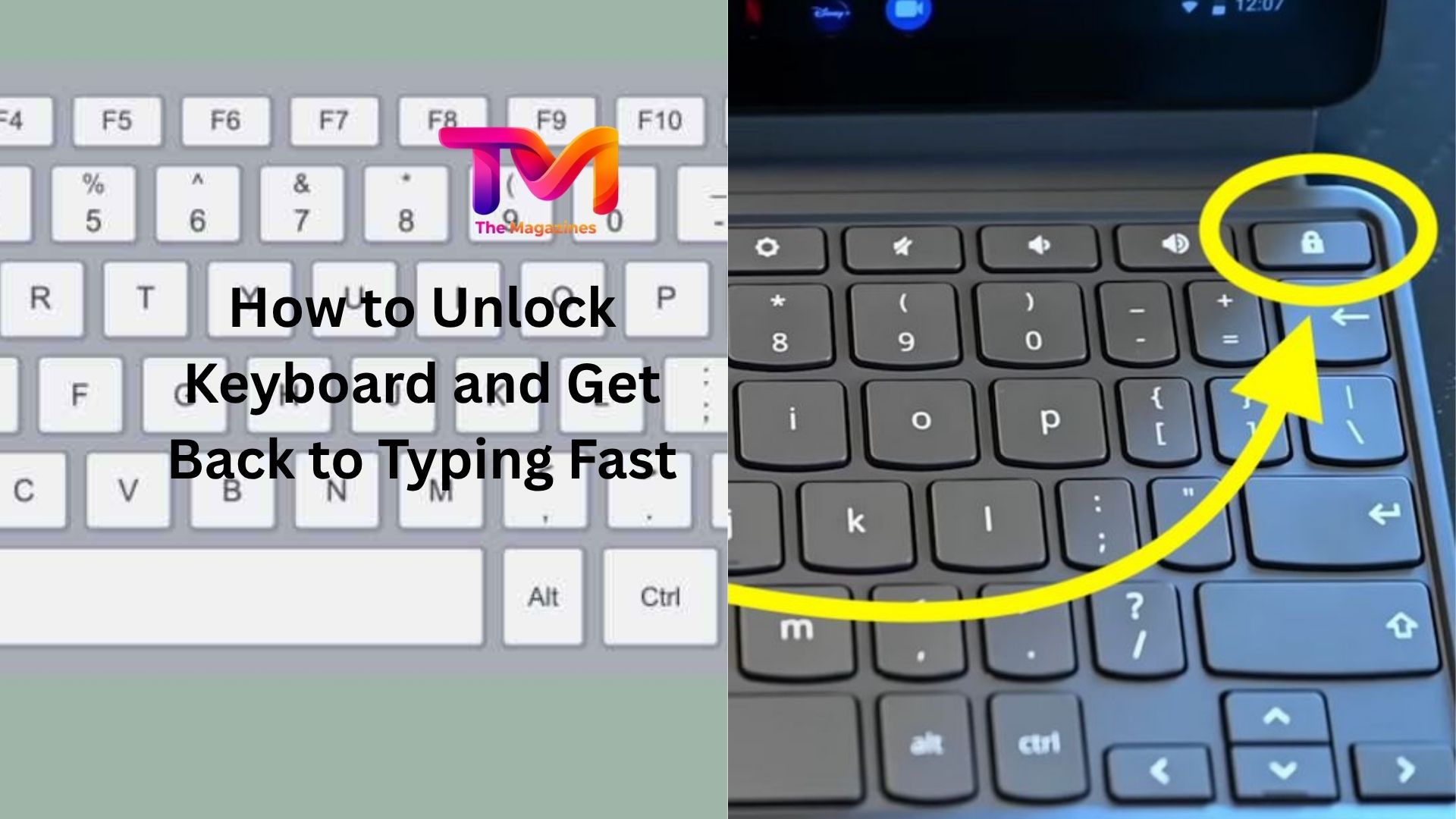
Few things are more frustrating than sitting down to work, pressing a key, and getting absolutely nothing in return.
You tap harder. Still nothing.
Maybe you’re trying to finish an important email, join a meeting, or submit an assignment. Suddenly your keyboard seems completely dead. The good news is that in many cases, the keyboard isn’t broken at all. It’s simply locked, disabled, or affected by a setting that can be fixed in minutes.
I’ve seen this happen on laptops, desktop computers, wireless keyboards, and even gaming keyboards. Sometimes it’s a simple key combination. Other times it’s a software setting hiding in plain sight.
Before you panic or start shopping for a replacement, it’s worth checking a few common causes.
Table of Contents
- Why a Keyboard Gets Locked
- Check for a Keyboard Lock Key
- How to Unlock a Laptop Keyboard
- Fix Keyboard Lock Issues in Windows
- Unlock a Mac Keyboard
- Wireless Keyboard Problems That Look Like a Lock
- When Accessibility Settings Cause the Problem
- Updating Drivers and System Settings
- Signs Your Keyboard May Have a Hardware Issue
- Final Thoughts
Why a Keyboard Gets Locked
A locked keyboard isn’t always actually locked.
Sometimes the operating system disables input because of a software issue. Other times a specific keyboard shortcut accidentally turns off certain keys. Many modern laptops also include function key combinations that can disable the keyboard temporarily.
Imagine you’re cleaning your laptop and press several keys at once. Or maybe a child is playing with the keyboard and discovers a mysterious shortcut. Suddenly nothing works, and it feels like the computer has stopped listening.
That’s often where the confusion starts.
Understanding the cause makes the solution much easier.
Check for a Keyboard Lock Key
Some keyboards include a dedicated lock feature.
Older keyboards and certain business laptops may have a keyboard lock button or a function key combination designed to prevent accidental typing.
Look carefully at your keyboard for symbols that resemble a lock icon. If you find one, try holding the Fn key and pressing that key.
Common combinations include:
- Fn + F6
- Fn + F11
- Fn + Num Lock
- Fn + Esc
The exact shortcut depends on the manufacturer.
Here’s a quick real-world example. A friend called me convinced his laptop keyboard had failed. After ten minutes of troubleshooting, we discovered he had accidentally pressed Fn + F11 while adjusting screen brightness. One press later, everything worked normally again.
Simple fixes happen more often than people think.
How to Unlock a Laptop Keyboard
Laptop keyboards can become unresponsive for several reasons.
Start with the easiest solution first.
Restart the computer completely. Not sleep mode. Not hibernate. Perform a full restart.
You’d be surprised how many keyboard problems disappear after a fresh reboot.
If that doesn’t help, try these checks:
Disconnect External Devices
Sometimes connected hardware creates conflicts.
Remove external keyboards, USB hubs, gaming accessories, and docking stations. Restart the computer and test the built-in keyboard again.
Check for Physical Debris
Dust, crumbs, and small particles can interfere with keyboard function.
Turn the laptop off and inspect the keys carefully. A quick cleaning may solve the issue.
Test in Login Screen
If the keyboard works when entering your password but stops working after logging in, the problem is likely software-related rather than hardware-related.
That’s useful information because it narrows down the troubleshooting process significantly.
Fix Keyboard Lock Issues in Windows
Windows includes several settings that can affect keyboard behavior.
One of the most common culprits is Filter Keys.
Turn Off Filter Keys
Filter Keys is designed to help users who have difficulty pressing keys accurately. Unfortunately, it can sometimes make the keyboard feel broken.
To check it:
- Open Settings.
- Go to Accessibility.
- Select Keyboard.
- Turn off Filter Keys.
Many people accidentally activate it by holding the Shift key for several seconds.
If your keyboard suddenly stopped responding after a long key press, this setting is worth checking immediately.
Run the Keyboard Troubleshooter
Windows includes built-in diagnostic tools.
Go to:
Settings > System > Troubleshoot > Other Troubleshooters
Find the keyboard troubleshooter and run it.
It won’t solve every issue, but it can detect common configuration problems automatically.
Reinstall Keyboard Drivers
Driver corruption can occasionally disable keyboard functionality.
Open Device Manager and locate the keyboard section.
Right-click the keyboard device and choose Uninstall Device. Then restart the computer.
Windows usually reinstalls the correct driver automatically during startup.
It’s a surprisingly effective fix when software glitches are involved.
Unlock a Mac Keyboard
Mac users face similar issues, although the causes are sometimes different.
If your Mac keyboard isn’t responding, start with a restart.
Next, check whether specific modifier keys appear stuck. The Shift, Control, Option, or Command keys can occasionally behave oddly due to software conflicts.
For wireless Apple keyboards:
- Turn Bluetooth off and on.
- Remove and reconnect the keyboard.
- Charge the battery fully.
- Restart the Mac.
Sometimes the issue isn’t a lock at all. The keyboard simply loses connection and appears frozen.
A quick Bluetooth reset often brings everything back to life.
Wireless Keyboard Problems That Look Like a Lock
Wireless keyboards create their own category of confusion.
The keyboard appears locked. None of the keys work. Yet the real problem is often power or connectivity.
Check these basics first:
- Replace batteries.
- Verify the power switch is turned on.
- Reconnect the USB receiver.
- Move closer to the computer.
- Remove sources of wireless interference.
I once spent half an hour helping someone troubleshoot a “dead” keyboard only to discover the batteries had been installed backward.
It sounds funny afterward. In the moment, not so much.
Never underestimate the simple possibilities.
When Accessibility Settings Cause the Problem
Accessibility features can dramatically change keyboard behavior.
These settings are helpful for many users, but they can be confusing if enabled accidentally.
Sticky Keys
Sticky Keys allows keyboard shortcuts to work without pressing multiple keys simultaneously.
Sometimes users think their keyboard is malfunctioning when Sticky Keys changes how keys respond.
To disable it:
- Open Accessibility Settings.
- Select Keyboard.
- Turn off Sticky Keys.
Toggle Keys
Toggle Keys creates sounds when special keys like Caps Lock or Num Lock are pressed.
While not usually responsible for a locked keyboard, it can make the keyboard feel unusual if activated unexpectedly.
Checking these settings only takes a minute and can save a lot of frustration.
Updating Drivers and System Settings
Software updates don’t always get the credit they deserve.
An outdated operating system or keyboard driver can create strange behavior that looks like a hardware failure.
Check for:
- Windows updates
- macOS updates
- Laptop manufacturer driver updates
- Firmware updates for wireless keyboards
Gaming keyboards deserve special attention here.
Brands such as Logitech, Corsair, Razer, and SteelSeries often rely on companion software. If that software becomes outdated, keyboard functions may stop working correctly.
Updating everything may sound boring, but it often solves mysterious problems without any deeper troubleshooting.
Signs Your Keyboard May Have a Hardware Issue
At some point, software fixes stop helping.
If you’ve tried the common solutions and the keyboard still won’t respond, hardware problems become more likely.
Watch for signs such as:
- Certain keys never work
- Multiple keys stop working together
- Liquid was spilled on the keyboard
- Physical damage is visible
- The keyboard disconnects randomly
A laptop that recently experienced a coffee spill is telling a very different story than one that simply stopped responding after a software update.
Context matters.
If possible, connect an external keyboard.
When the external keyboard works perfectly while the built-in keyboard remains unresponsive, that’s often a strong clue that the internal keyboard needs repair or replacement.
A Few Quick Fixes Worth Trying First
Before diving into advanced troubleshooting, there are a handful of fixes that consistently solve keyboard lock issues:
- Restart the computer.
- Check Fn key combinations.
- Disable Filter Keys.
- Reconnect wireless devices.
- Replace batteries.
- Update drivers.
- Test with another keyboard.
- Check for accessibility settings.
These steps cover the majority of everyday keyboard problems.
Not every issue requires technical expertise. Sometimes the solution takes less than thirty seconds.
Final Thoughts
Learning how to unlock keyboard issues isn’t as complicated as it first seems. Most cases come down to accidental settings changes, keyboard shortcuts, wireless connection problems, or simple software glitches.
Start with the easy fixes before assuming the worst. Check for lock key combinations, restart the computer, review accessibility settings, and verify connections. Those small steps solve a surprising number of problems.
And if none of those work, testing with another keyboard can quickly reveal whether you’re dealing with software trouble or a genuine hardware failure.
A non-working keyboard feels like a major problem when you’re staring at a screen and nothing happens. Fortunately, it’s often one of those issues where a few minutes of troubleshooting can get everything back to normal and your fingers moving again.













Leave a Reply